
Documentation
Item Customizer
Choosing varieties and ingredients before an item is added to the bag.
Item Customizer
Whenever an item has a required variety (like a size) or an ingredient the customer can change, its Add to Order button opens the Customize Item dialog instead of adding it straight to the bag.
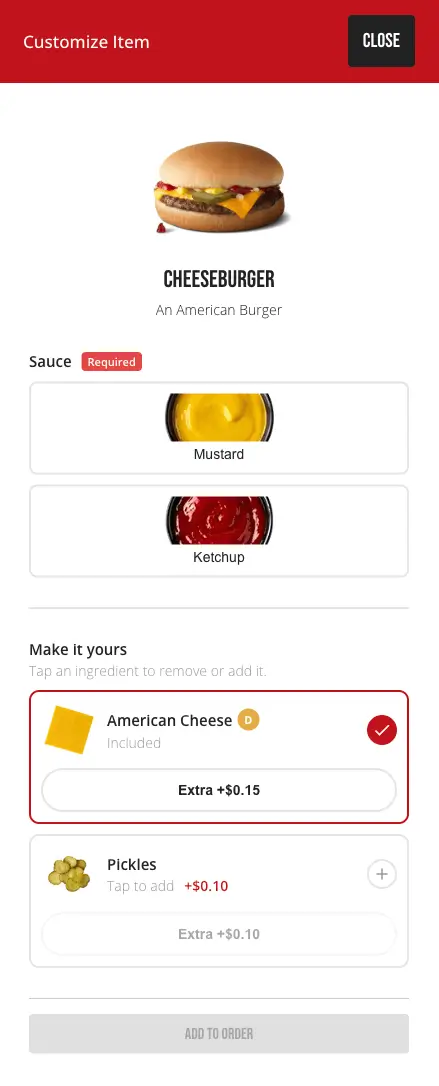
Varieties
Each variety (for example, Size or Flavor) is shown as its own group of tappable options, labeled Required or Optional. A variety allowing only one choice behaves like a radio button — picking a new option replaces the old one; a variety allowing multiple choices lets the customer pick up to its configured limit. Options with a price difference show it inline (for example, +$1.50).
Ingredients
Below the varieties, a Make it Yours section lists the item's optional and add-on ingredients as a row each. Tapping a row toggles it between included and removed (for an ingredient that comes on the item by default) or added and not-added (for an optional add-on); an Extra button appears next to any ingredient that can be doubled up, at its own price. Allergens are flagged right on the row.
Nutrition
A running nutrition summary (Calories, Fat, Carbs, Protein) updates live as the customer changes their selections, and only appears once there's anything to show.
Adding and editing
- Add to Order is disabled until every required variety has a selection.
- Reopening an item already in the bag (via its Customize link on the Your Bag page) opens the same dialog, pre-filled with whatever was chosen before, with the button relabeled Update Item so changes replace the item in place rather than adding a second one.