
Documentation
Orders Board
How live orders move across the display as your kitchen works through them.
Orders Board
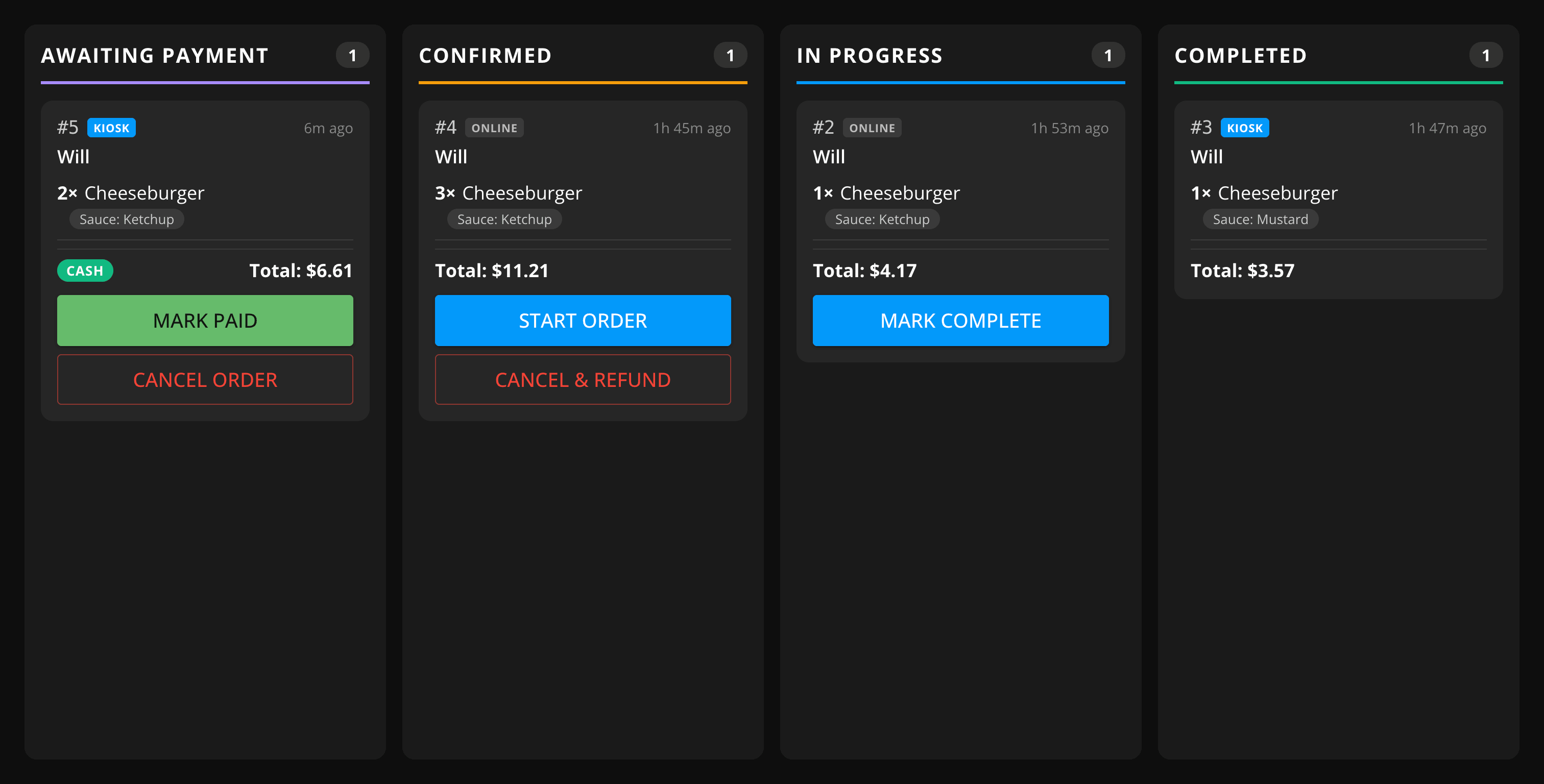
Once a display is paired, it shows a live board of orders for that location, organized into columns. Orders move from left to right as your kitchen works through them.
How the board works
The board checks for new orders every 30 seconds. Each order card shows its order number, how long ago it was placed, the customer's name and table number (if applicable), its items and any item or order notes, and the total. Cash orders show a Cash badge.
What's in this section
- Awaiting Payment → cash orders held until the customer pays (only shown when payment handling is turned on)
- Confirmed → new orders awaiting preparation
- In Progress → orders currently being prepared
- Completed → orders that have been fulfilled