Documentation
Shared Access
Inviting trusted users to help manage your account.
Shared Access
Shared Access lets you invite trusted users to help manage your dashboard, with permissions scoped to exactly what you want them to see and do. This feature requires the Shared Access addon.
Inviting a trusted user
The person you invite must already have a registered GrubStack account using the email address you invite them with — Shared Access grants an existing account permission to your dashboard, it doesn't create one.
From your dashboard, go to Shared Access and click Add Trusted User:
- Enter the email address they'll use to sign in.
- Select which areas of the dashboard they can access — for example Locations, Products, Orders, or Reports.
- Save, and access is granted for that user.
If the email doesn't match a registered GrubStack account, adding the trusted user will fail — ask them to create a free account first, then try again.
Managing access
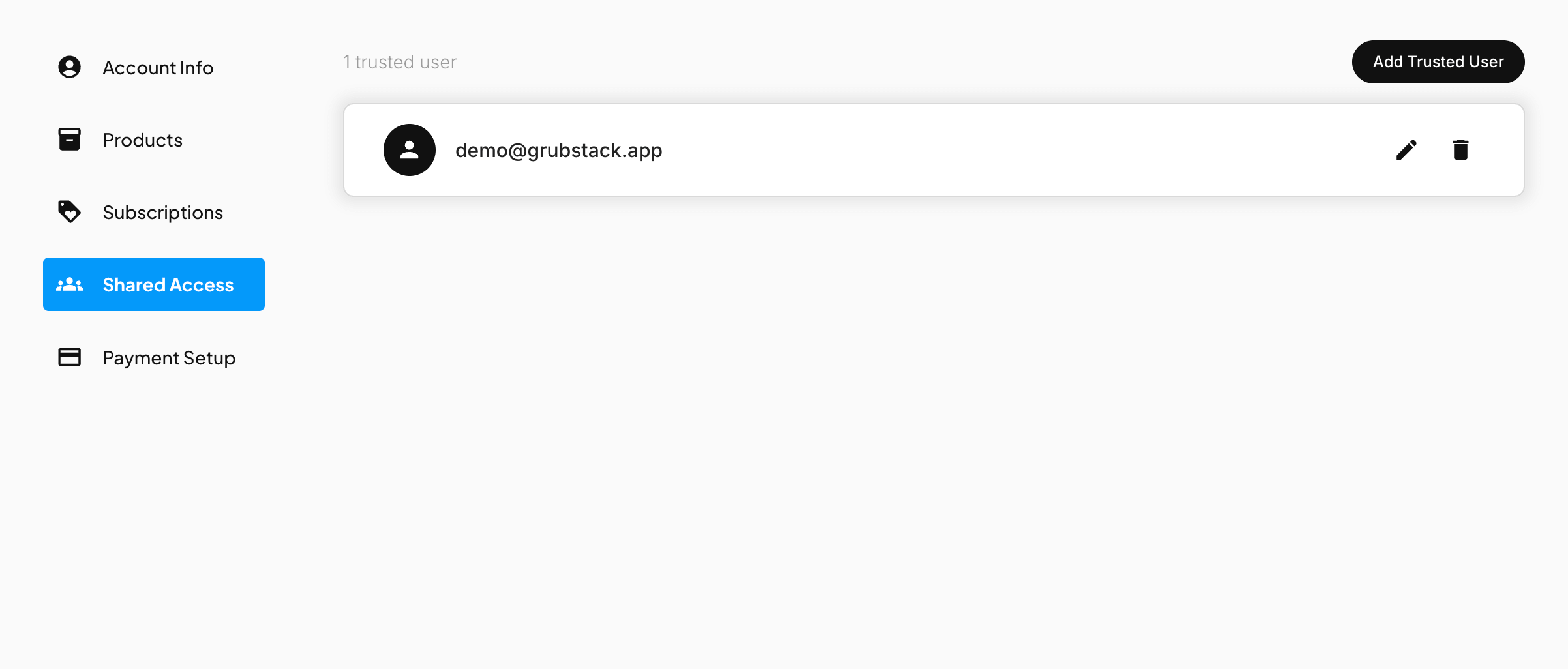
Each trusted user appears in your Shared Access list. From there you can:
- Edit permissions — change which areas of the dashboard a trusted user can access at any time.
- Remove access — revoke a trusted user entirely; they immediately lose access to your account.
A note on ownership
Trusted users can be granted access to specific areas of the dashboard, but only the account owner can manage billing, the GrubStack License, and addons.