
Documentation
Landing Page
Configure your storefront's homepage content.
Landing Page
The Landing Page section controls the content shown on your storefront's homepage — the hero banner, its call-to-action, the intro copy, and (if you have the Featured Items addon) a spotlighted menu item.
Home Banner
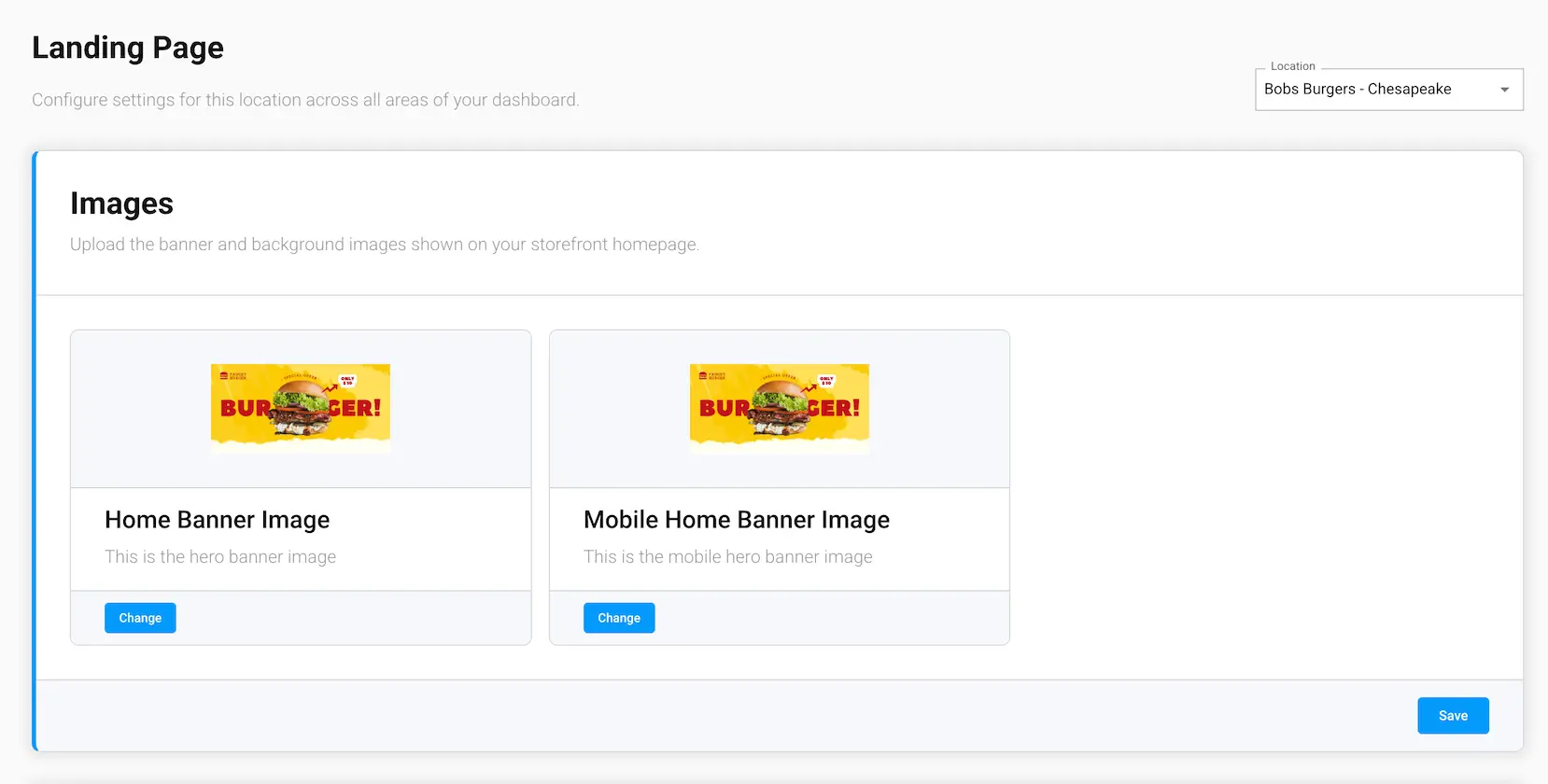
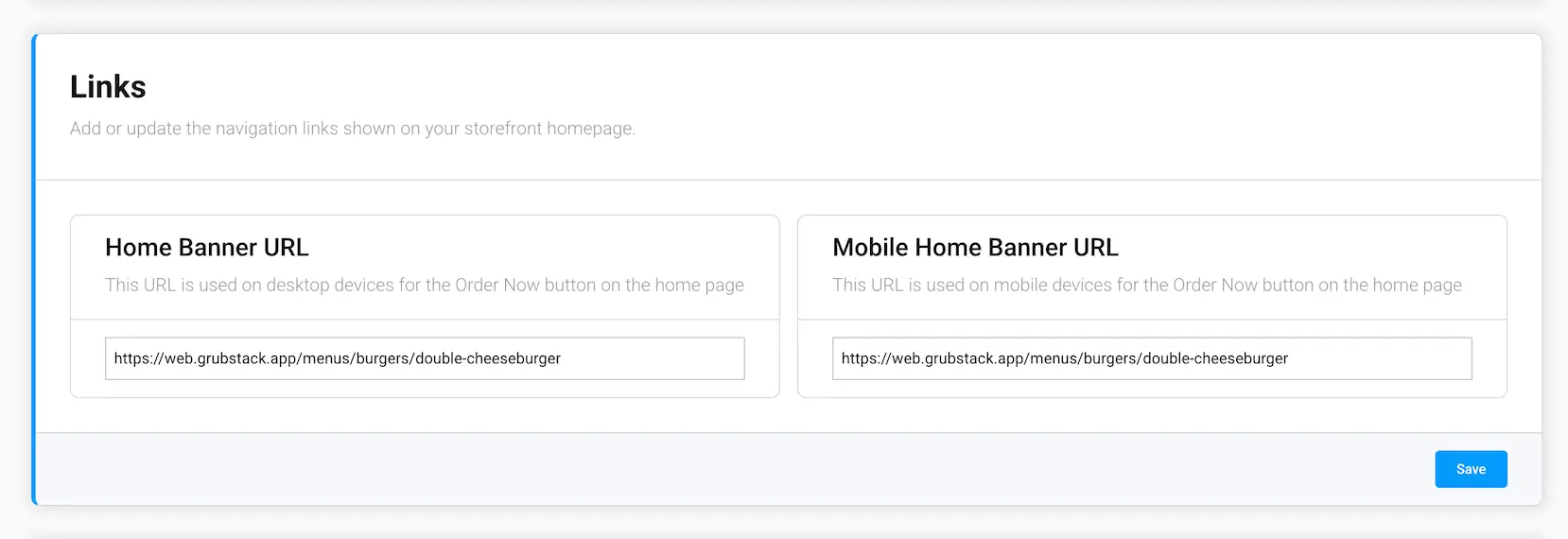
Upload a hero banner image for desktop and a separate one for mobile, and set the destination URL for each banner's "Order Now" button.
Introduction Section
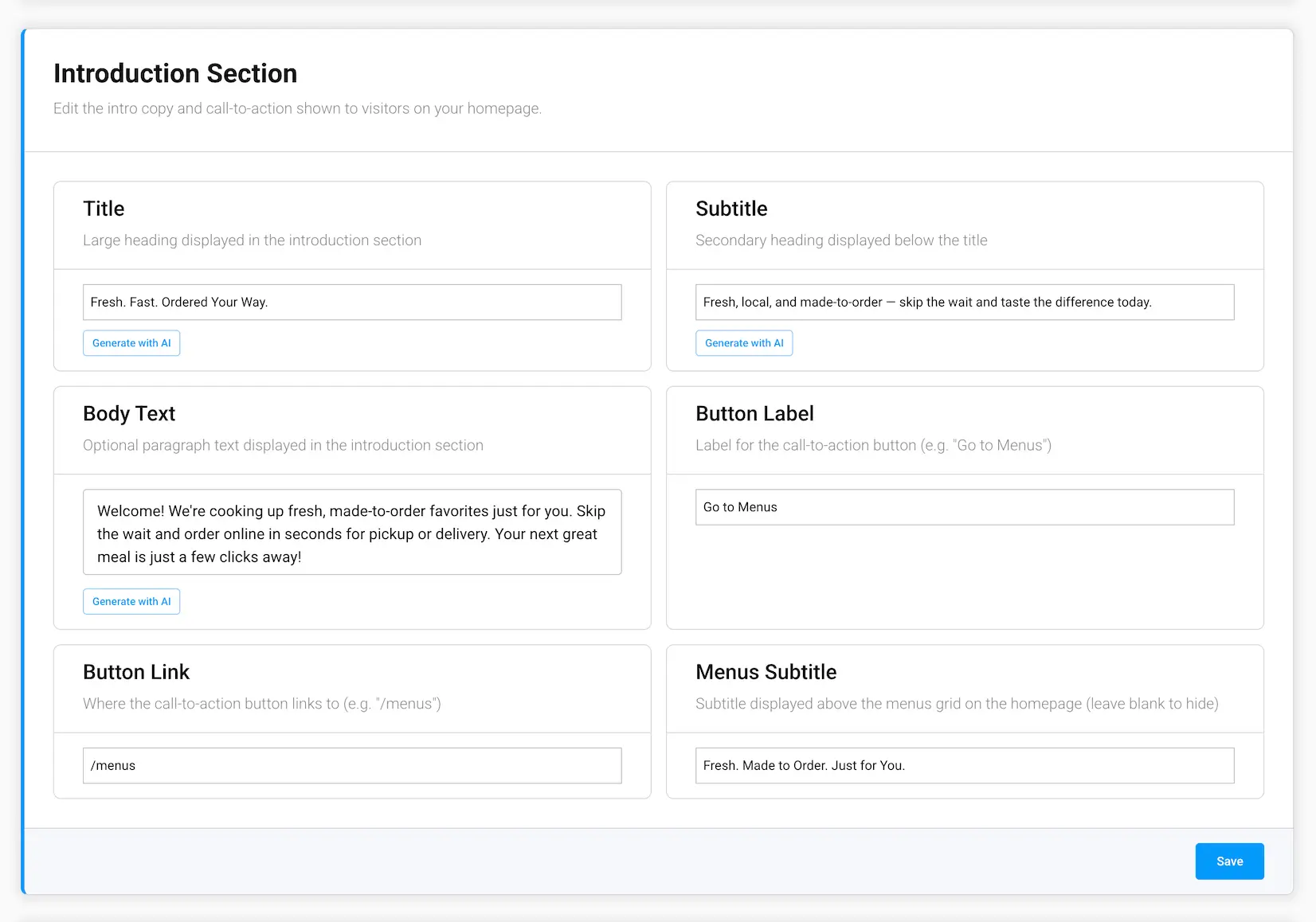
The intro copy shown to visitors on your homepage:
- Title — the large heading
- Subtitle — a secondary heading below the title
- Body Text — optional paragraph text (up to 300 characters)
- Button Label — the call-to-action button's label, e.g. "Go to Menus"
- Button Link — where the call-to-action button links to, e.g. "/menus"
- Menus Subtitle — shown above the menus grid on your homepage; leave blank to hide it
Featured Item
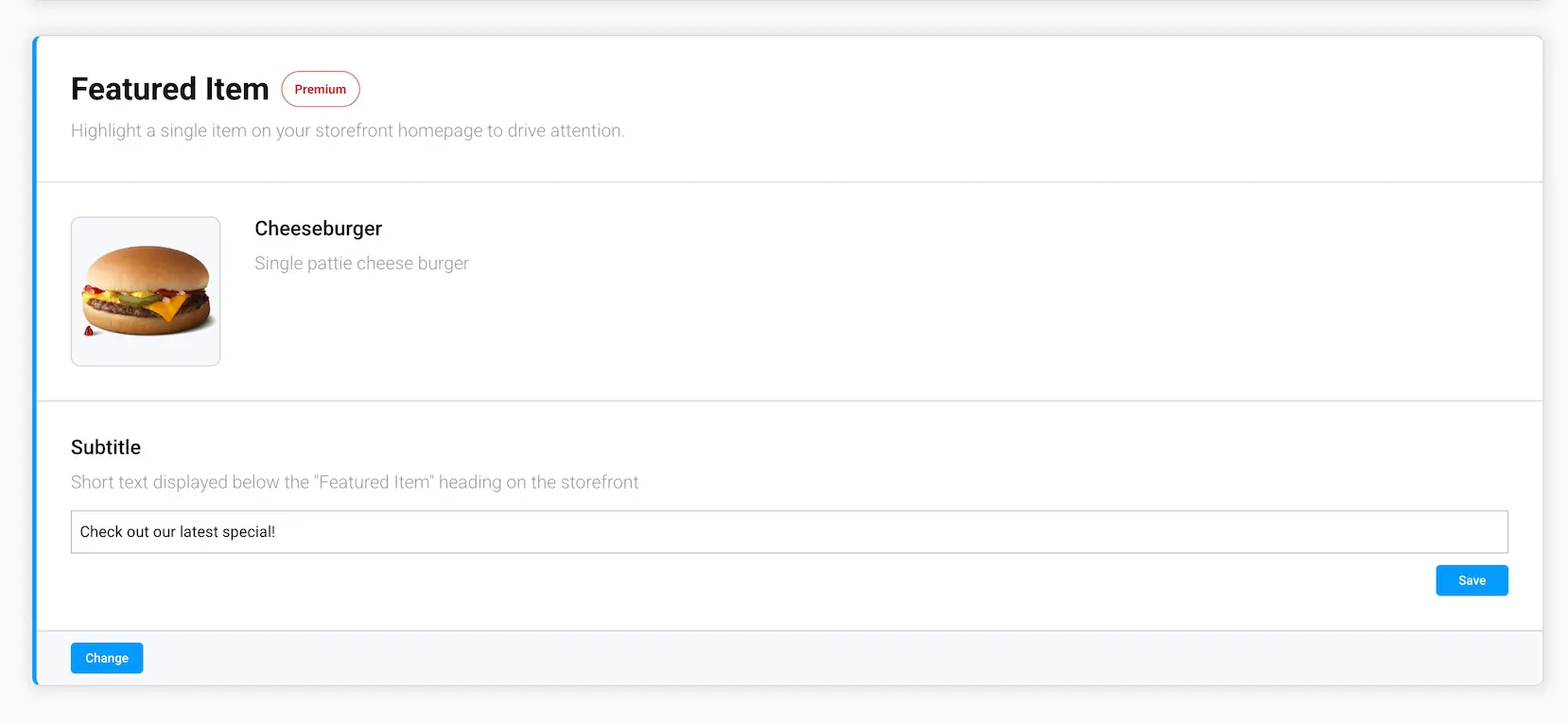
Requires the Featured Items addon. Spotlight a specific menu or item on your homepage, along with a custom tagline (e.g. "Check out our latest special").