Documentation
Kiosk
An introduction to the GrubStack Kiosk self-service ordering add-on.
GrubStack Kiosk
GrubStack Kiosk is a touch-friendly, self-service ordering screen designed for tablets — ideal for the front of a food truck or a counter. Customers browse your menu, build their order, and pay on their own, while your team stays focused on the food.
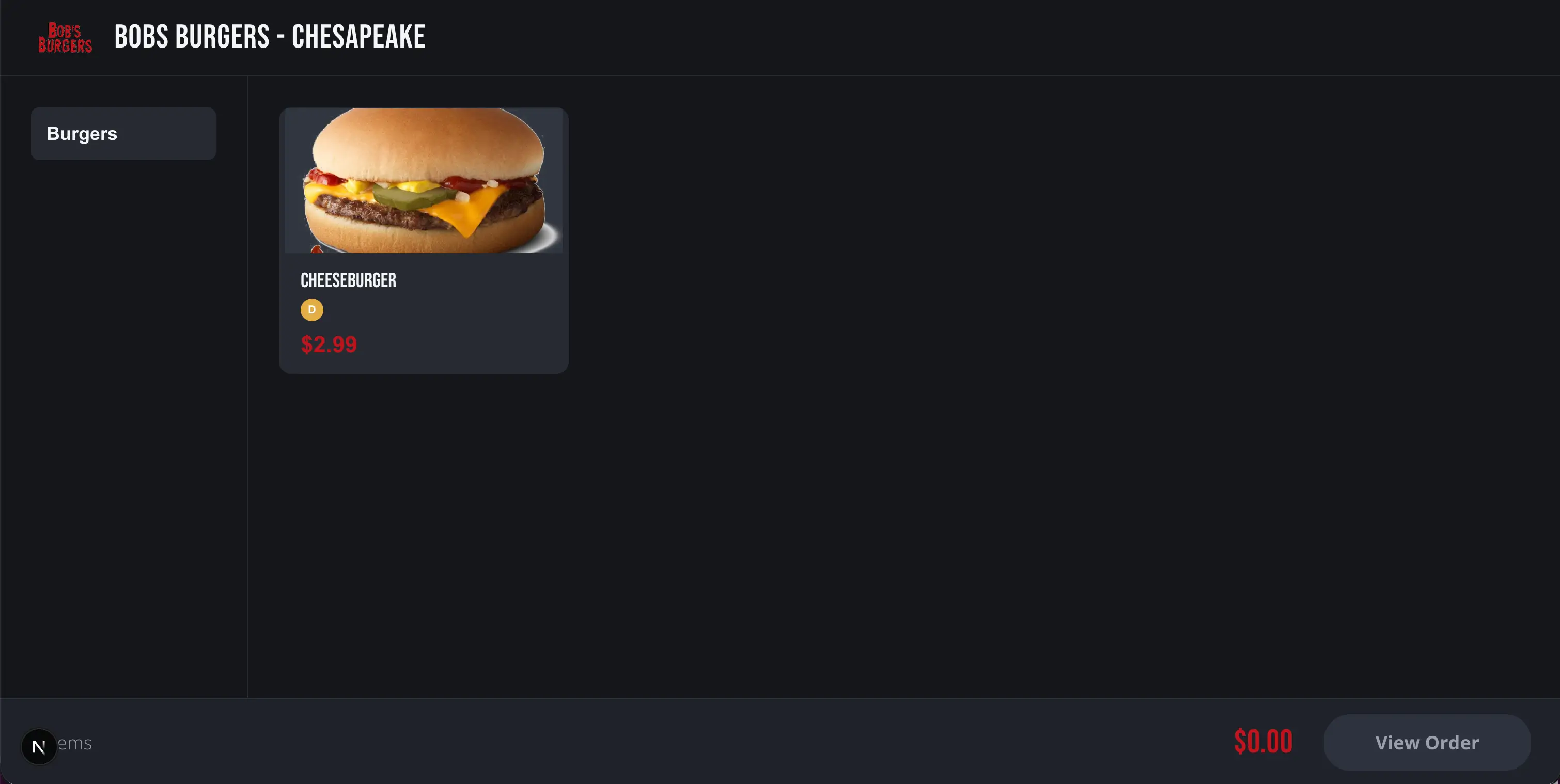
What customers can do
- Choose a menu from a set of large cards, then browse its items with photos, prices, and allergen information
- Search every menu at once from the search button in the top corner
- Build their item step by step — a full-screen guide walks through each option (such as bread or sauce) as a set of large cards, then the ingredients they can remove or add extra of, with the price updating as they go
- Review their order and pay by card, Apple Pay, or Google Pay
- Choose Pay at Window to pay cash instead, if you've enabled it
- See their order number when they're done
Setting up a kiosk
GrubStack Kiosk is an optional add-on — see the Addons page to purchase it for your account. Once purchased:
- Open your ordering site's kiosk page on a tablet — it's your storefront address followed by
/kiosk. - Choose the location the tablet will serve. It remembers this, so you only do it once per tablet.
- Leave the tablet on the start screen — customers tap anywhere to begin.
In GrubStack Core, go to Restaurant → Locations and open the GrubStack Kiosk card for a location to set:
- UI Theme — Light or Dark. Light is the default.
- Change Location PIN — an optional 4–8 digit PIN. When set, staff must enter it on the tablet to change which location it serves, so customers can't reset it.
The kiosk uses your location's logo and brand colors automatically.
Paying with cash
If Accept cash payments is on for the location (in the location's Ordering Settings), customers see a Pay at Window option. A cash order is held until you mark it paid on the Awaiting Payment column of the Orders board, and only then is it sent to your kitchen. This setting applies to your GrubStack Web storefront as well as the kiosk.
Between customers
If a customer walks away mid-order, the kiosk shows a "Are you still there?" prompt. If nobody responds, it clears the order and returns to the start screen so the next customer begins fresh.