
Documentation
Home Page
The hero banner, featured item, and introduction customers land on first.
Home Page
The first page a customer sees at your storefront — a mix of promotional banner, your most prominent item, and whatever introduction you've written, all optional and configured from your dashboard.
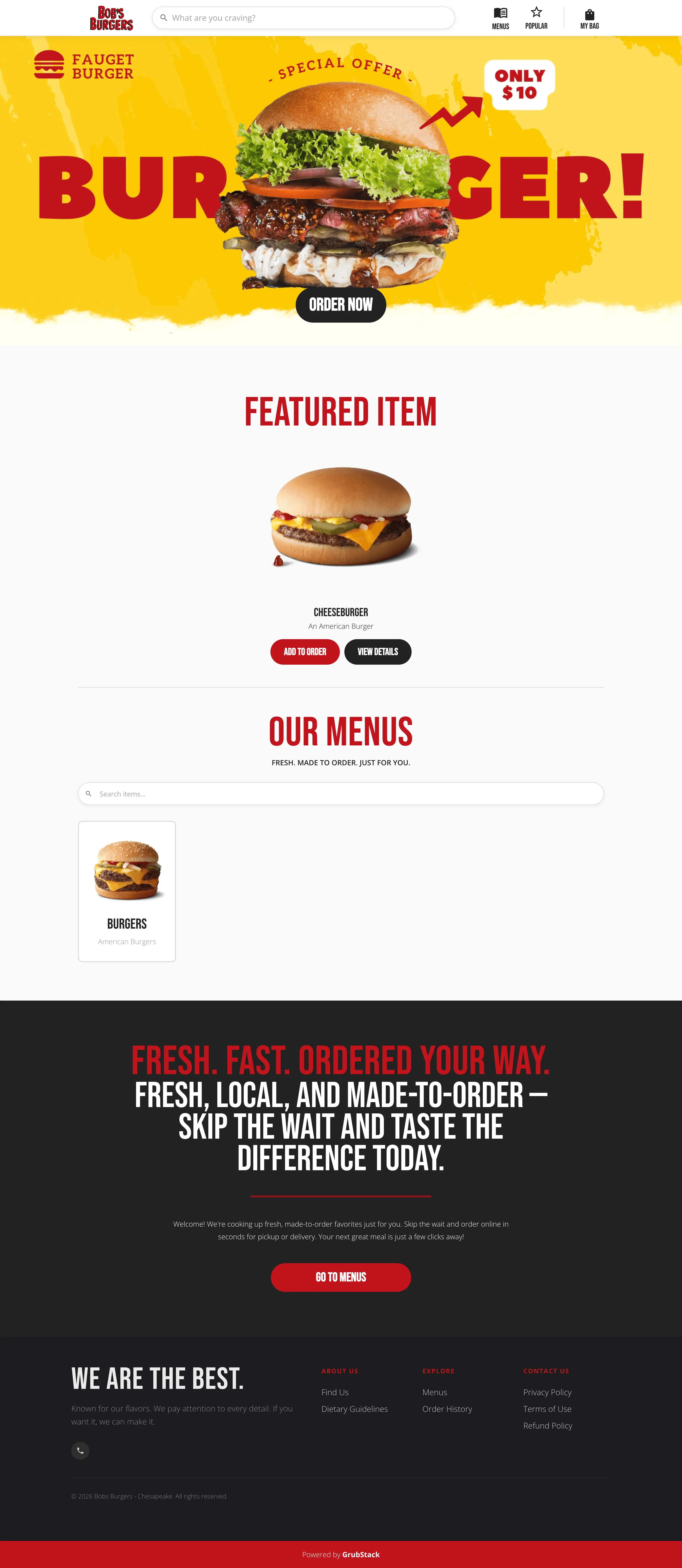
Hero banner
A full-width image with an Order Now button, set on the Branding page in your dashboard. A separate image can be set for mobile.
Featured item
One item, chosen at random from your menus each time the page loads, shown with its own Add to Order and View Details buttons. Its subtitle is set on the Branding page; the item itself rotates on its own and isn't something you pick directly.
Introduction
A title, subtitle, and body of your choosing, with a call-to-action button — set on the Landing Page section of your dashboard. If you haven't set a title and subtitle, this section doesn't appear at all.
Site navigation
The header at the top of every page carries:
- A search field for finding items by name or description, with results appearing right in the header
- A Menus link
- A Popular button, showing your best-selling items
- A Locations link, shown only when your account has more than one active location
- A My Bag button with a live item count, opening a slide-out summary of the cart with a View Bag & Checkout button
