
Documentation
Locations
Add and manage your restaurant locations.
Locations
Locations are the individual restaurants or storefronts under your account. Every GrubStack License includes 1 location — additional locations require the Add a Location addon.
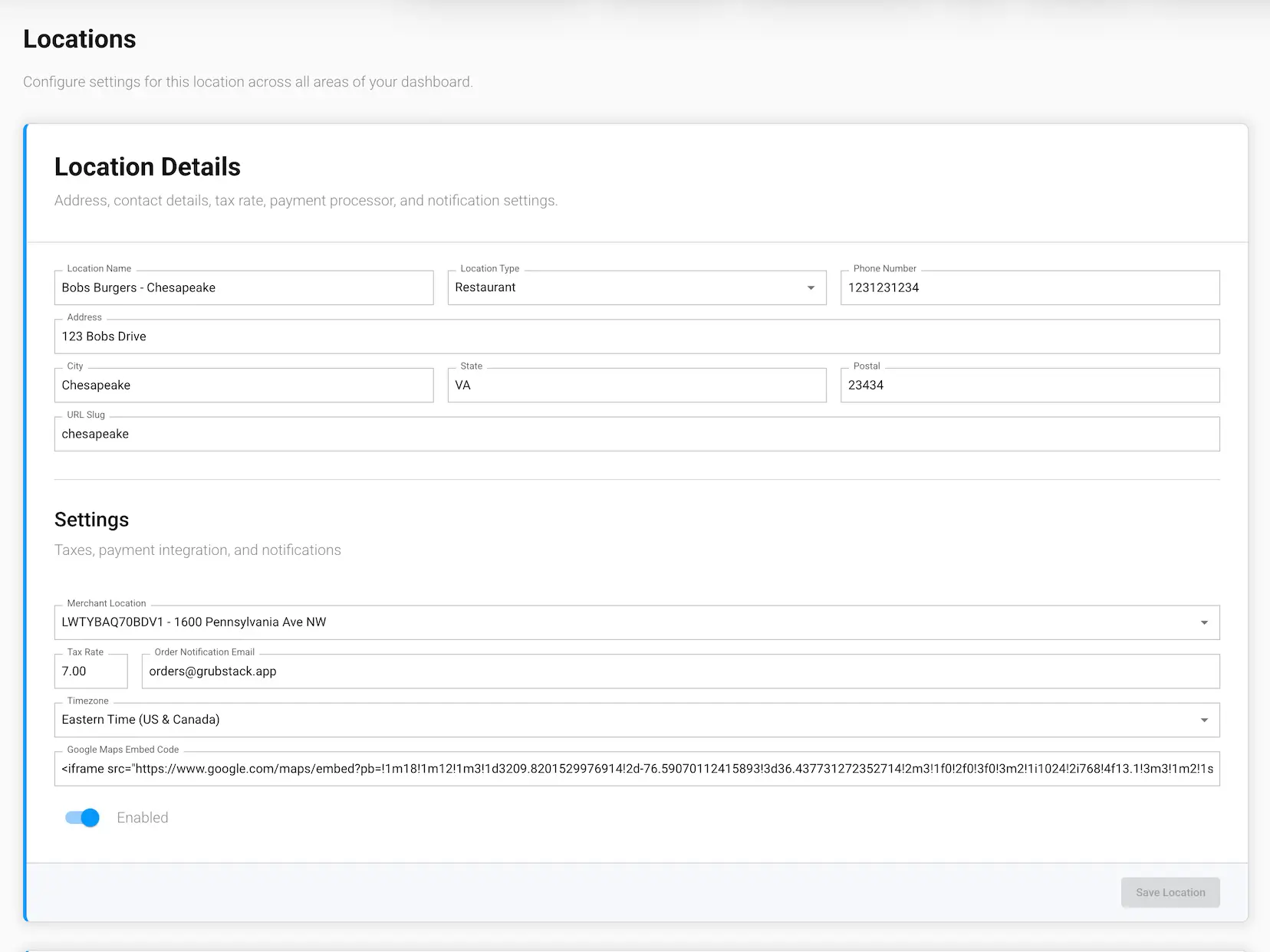
Location details
- Name, address, and phone number
- Location type — for example Restaurant or Food Truck
- URL Slug — identifies this location in your storefront's URLs; must be unique across your locations
- Tax rate — applied to orders at this location
- Order notification email — where new order alerts are sent
- Timezone — used for working hours and order timestamps
- Merchant location — if you're using Square, which Square location this maps to
- Google Maps Embed Code — embed code for the map shown on your storefront's Find Us page
- Enabled — inactive locations can't take orders and are hidden from your storefront
Ordering settings
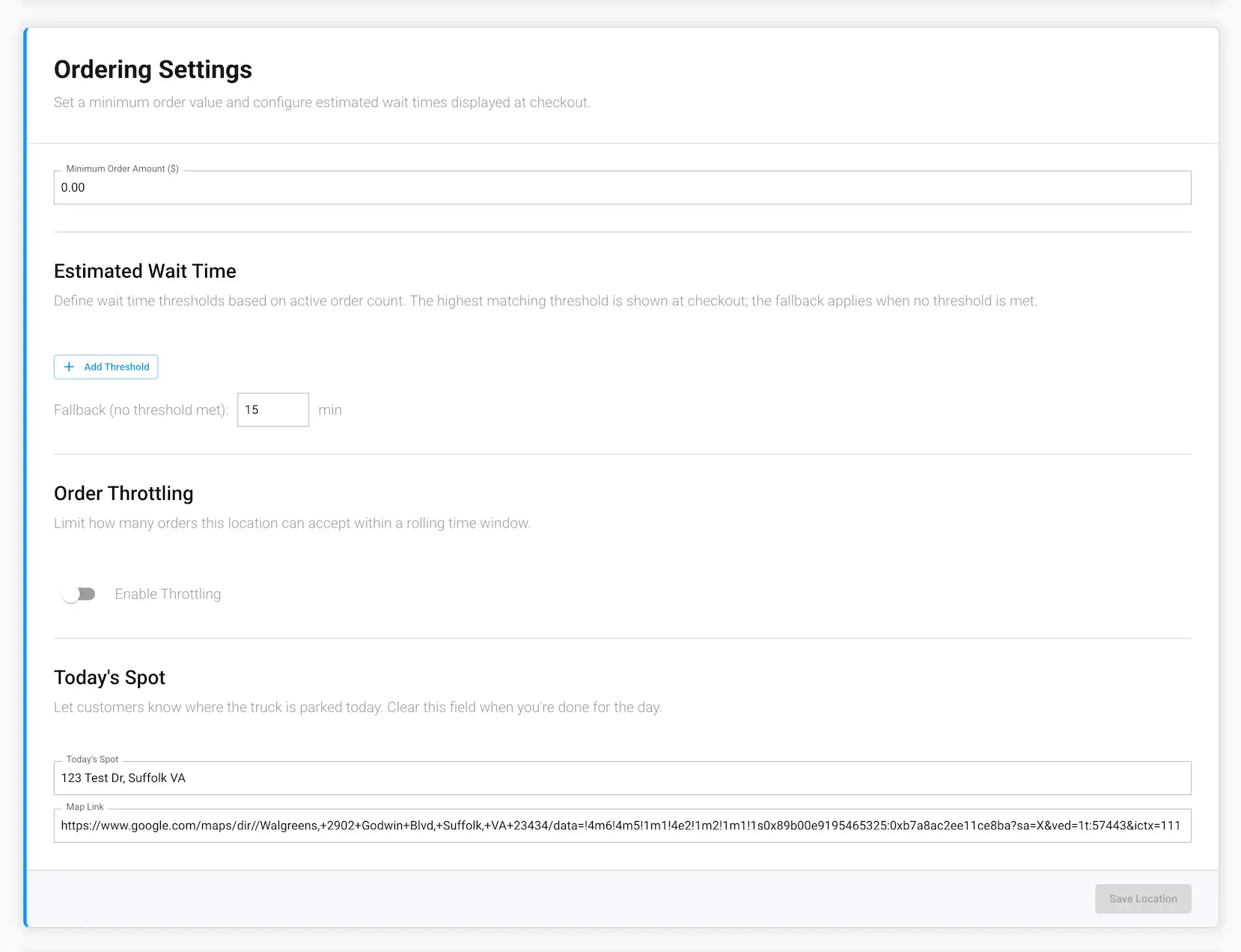
Each location also has its own ordering configuration:
- Minimum order amount — the smallest order total customers can check out with
- Estimated wait time — set thresholds so customers see a live estimate based on how busy you are, with a fallback value when no threshold applies
- Order throttling — optionally cap how many orders can come in within a rolling time window, either rejecting new orders or queuing them once the limit is hit
- Accept cash payments — let customers choose Pay at Window on your storefront and kiosk. Cash orders are held until staff mark them as paid on the Orders board. Turning this off applies to both
- Today's Spot — for food trucks, a name and map link customers can use to find your current location
GrubStack Kiosk
Each location also has a GrubStack Kiosk card. If you don't have the add-on, it describes the kiosk and has a Purchase Addon button. With the add-on, you can choose the kiosk's UI Theme (Light or Dark) and set an optional Change Location PIN that staff must enter to change which location a kiosk tablet serves. See Kiosk under About our Apps for more.
Managing locations
From your dashboard, go to Restaurant → Locations to add, edit, or deactivate a location.
Business Hours
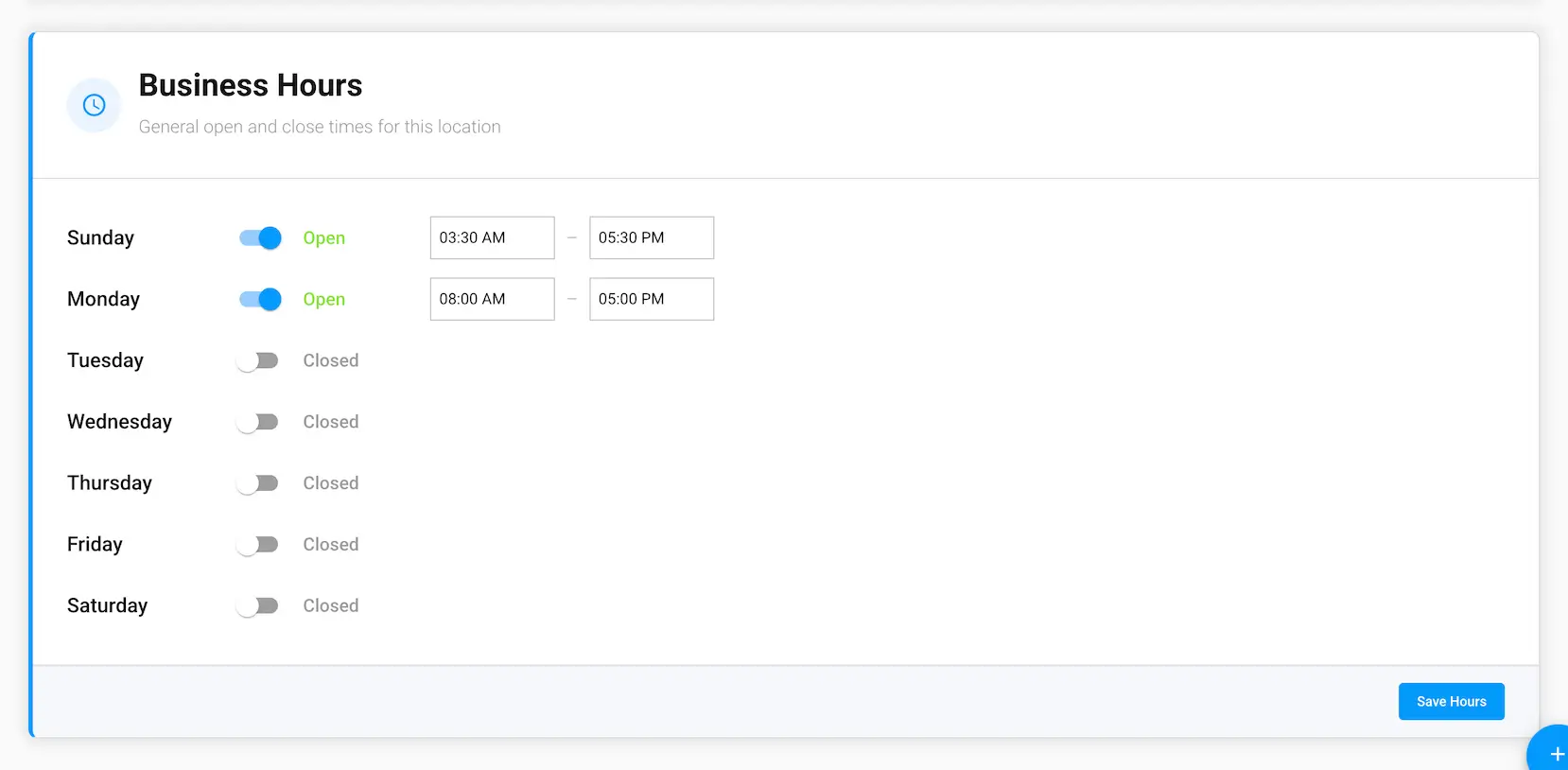
Each location also has a general Business Hours schedule — the open and close times for the location as a whole, set directly from the Locations screen and saved immediately when you update them.
This is separate from the Working Hours page, which sets hours per order type (for example, different hours for Pickup vs. Dine-In). Business Hours is the location's overall schedule, not tied to any specific order type.