See where you run your restaurant.
The GrubStack dashboard, screen by screen: live orders, your menu, settings and reports. These are real screens from our StreetSide demo store.
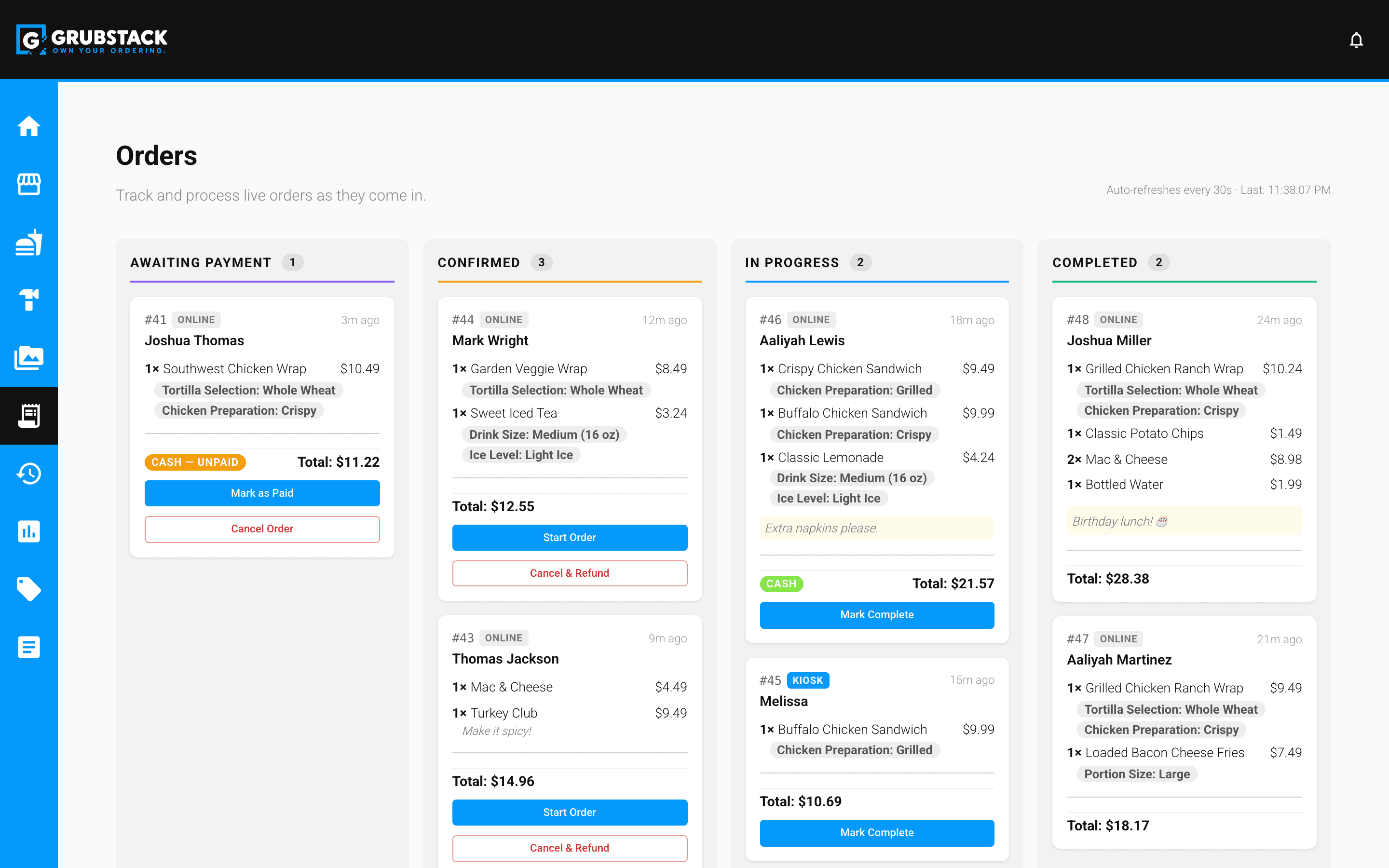
Every order, live, in one place
Online and kiosk orders land on one board and move left to right as your team works. The board refreshes on its own, so it can stay open on a tablet all shift.
- Cash orders wait for youPay-at-the-window orders stay here until you mark them paid, so nothing is cooked before it is paid for.
- Every choice the customer madeSizes, tortilla, ice level and notes show on the ticket, so nobody has to guess.
- One tap to move it alongStart the order, then mark it complete. Online customers get an email at each step.
- Online or kioskEach order shows where it came from.
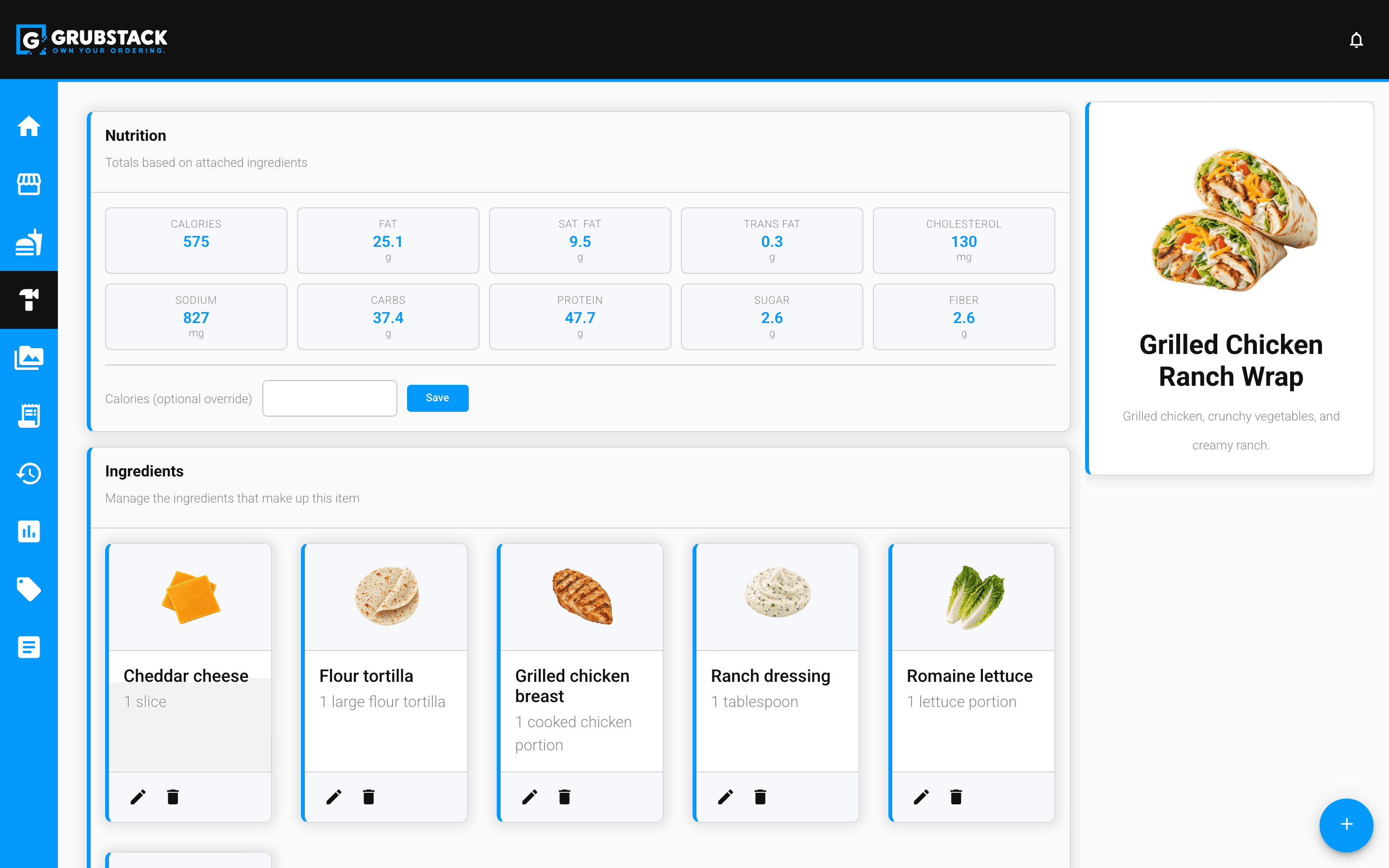
Build items from real ingredients
Add ingredients to an item and GrubStack totals its nutrition for you. Customers can change each ingredient on your ordering site, and the facts update with their choices.
- Nutrition, calculatedCalories, fat, protein and more, added up from the ingredients.
- Ingredients customers can changeLet customers choose none, regular or extra of each one.
- See it as customers willYour photo, name and description, as they appear on your menu.
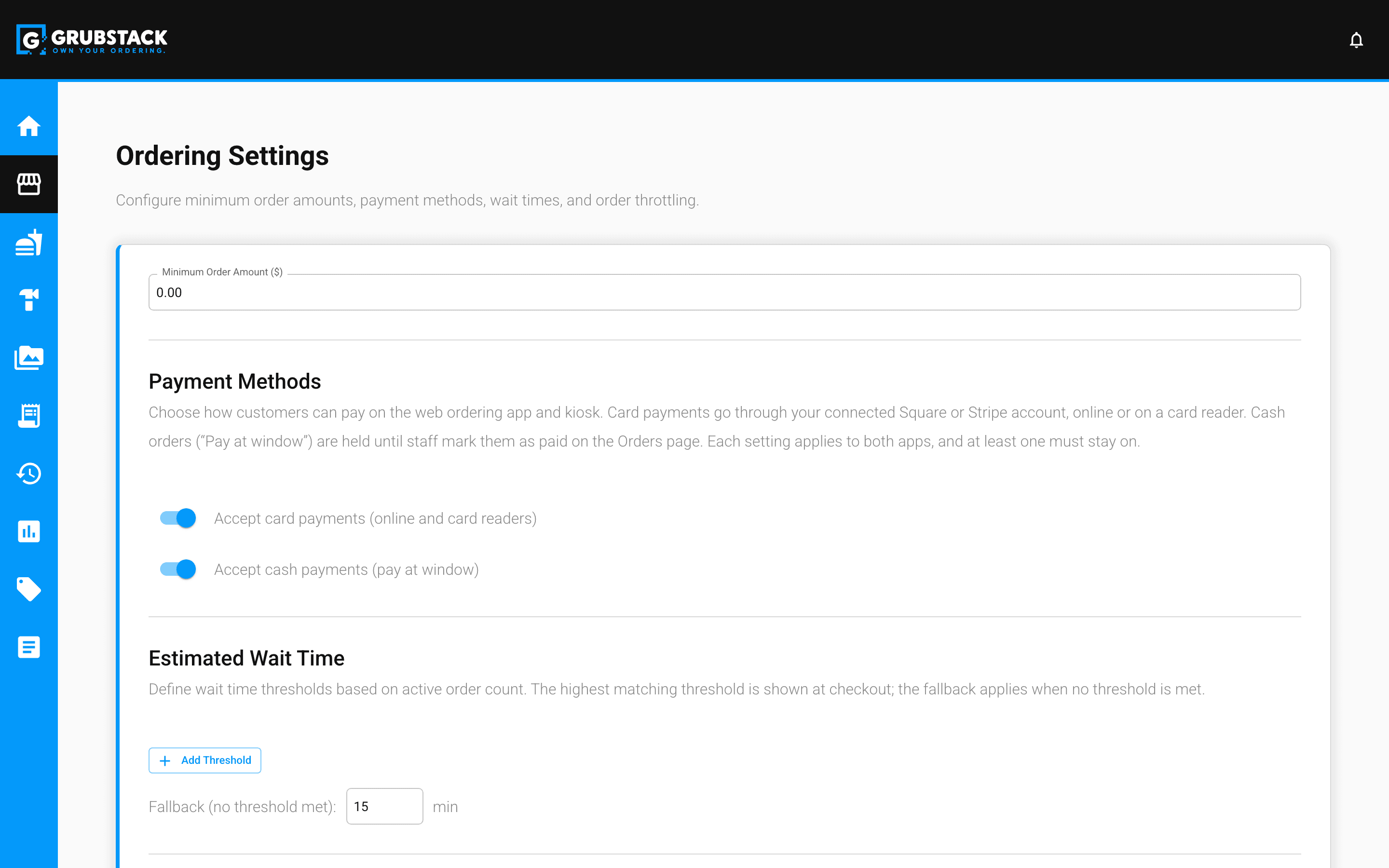
Run ordering your way
Choose how customers pay and how long orders take. Changes go live on your ordering site and kiosk right away.
- Card, cash or bothTurn card or cash payments on or off for each location.
- Honest wait timesSet longer waits for busy times; customers see the estimate before they pay.
- A minimum orderOptional, if small orders are not worth it for you.
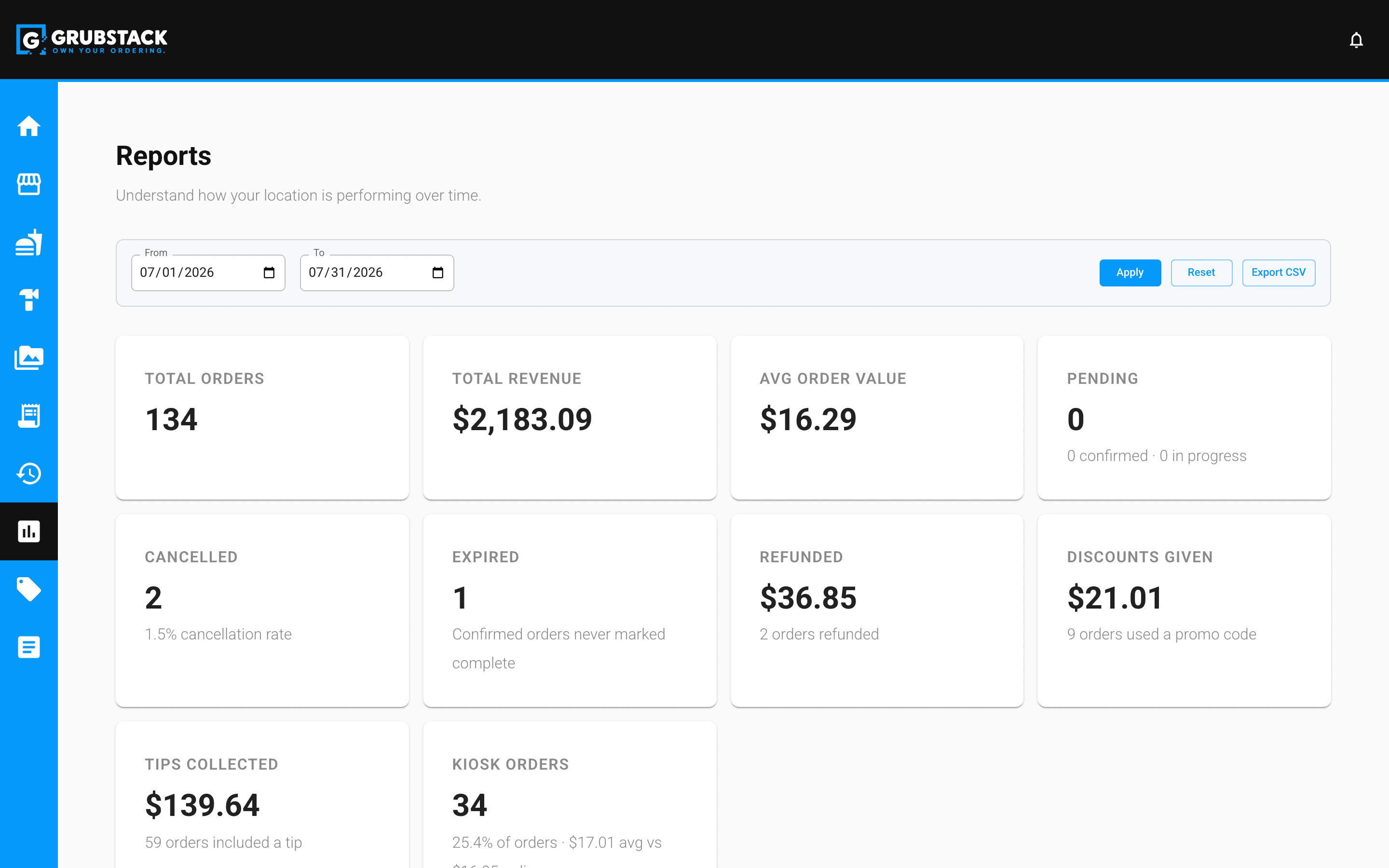
Know how the month went
Pick any date range to see orders, revenue, tips and refunds, and how much comes through the kiosk.
- Revenue and average orderFor any date range, from one day to a whole year.
- Tips and discountsWhat customers added in tips, and what promo codes cost you.
- Export to CSVTake the numbers to your accountant or spreadsheet.
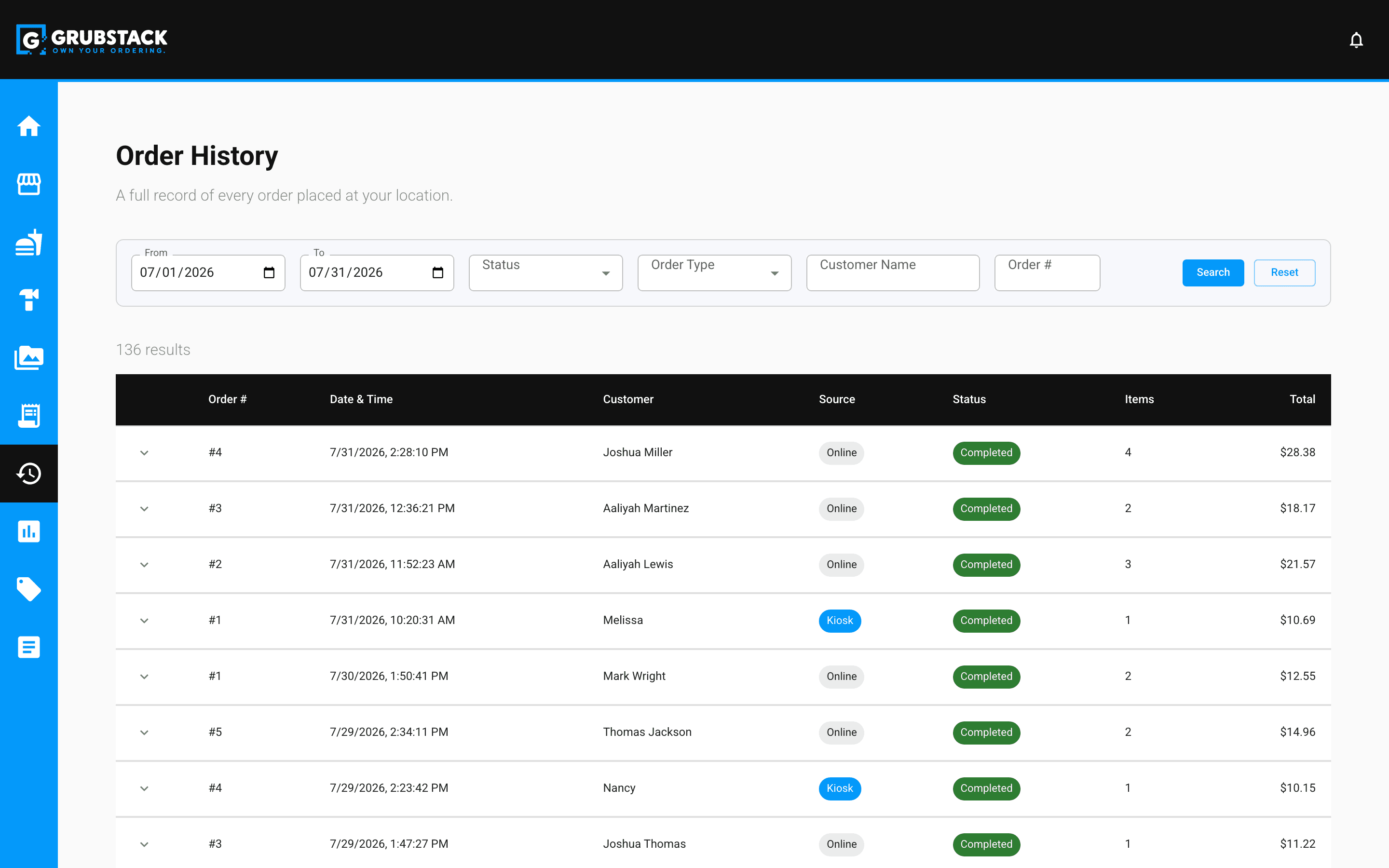
Find any order
Every order you have ever taken, searchable by date, status, order type, customer name or order number.
- Search and filterTrack down the order a customer is calling about in seconds.
- Open any orderSee exactly what was ordered and how it was paid.
- Where it came fromOnline and kiosk orders, side by side.
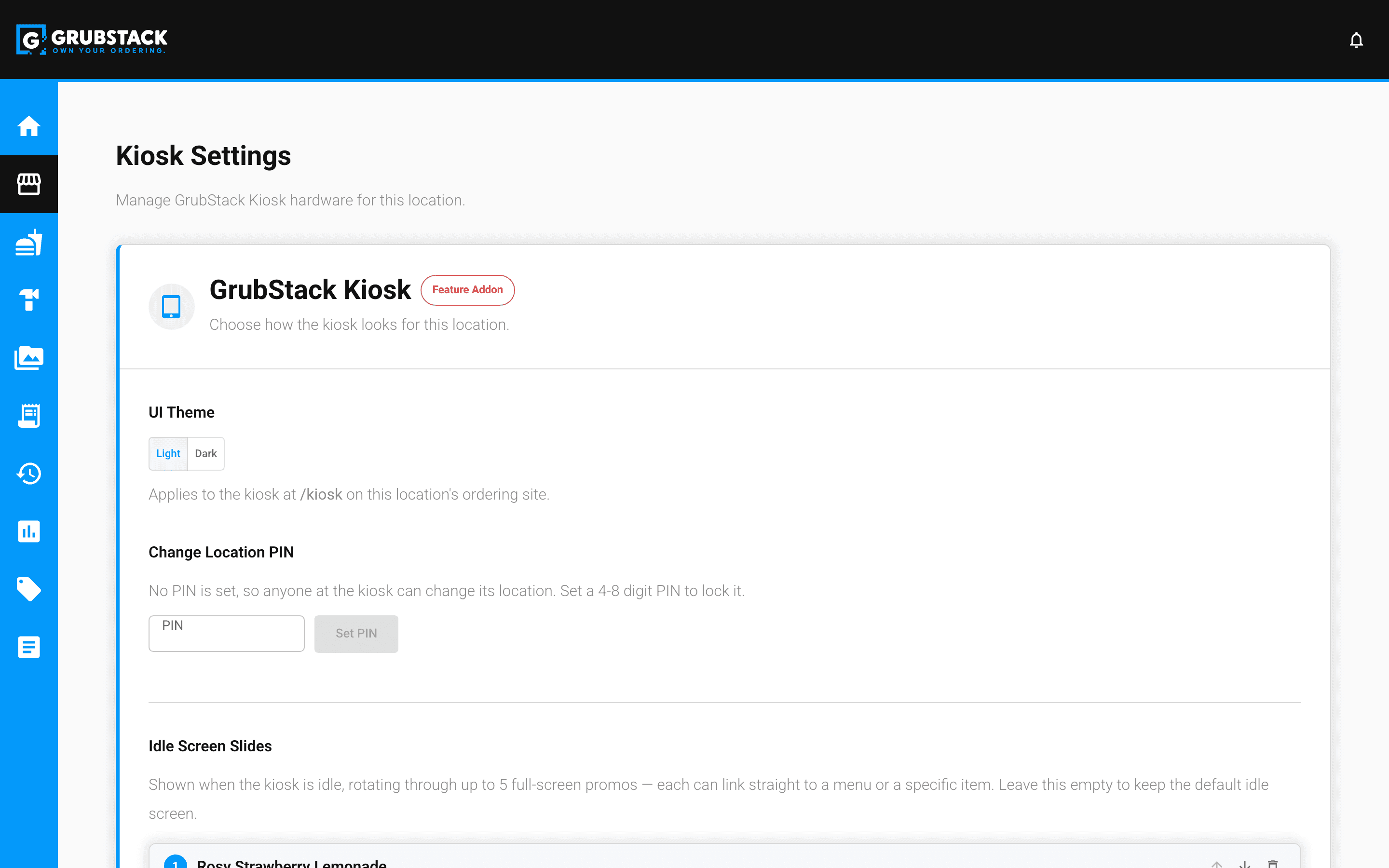
Set up your kiosk
Pick a light or dark look, lock the kiosk to a location with a PIN, and choose the slides it shows while nobody is ordering.
- Light or darkMatch the kiosk to your space.
- A PIN for staffOnly staff can switch which location the kiosk orders for.
- Idle screen slidesPromote your best items until the next customer taps.
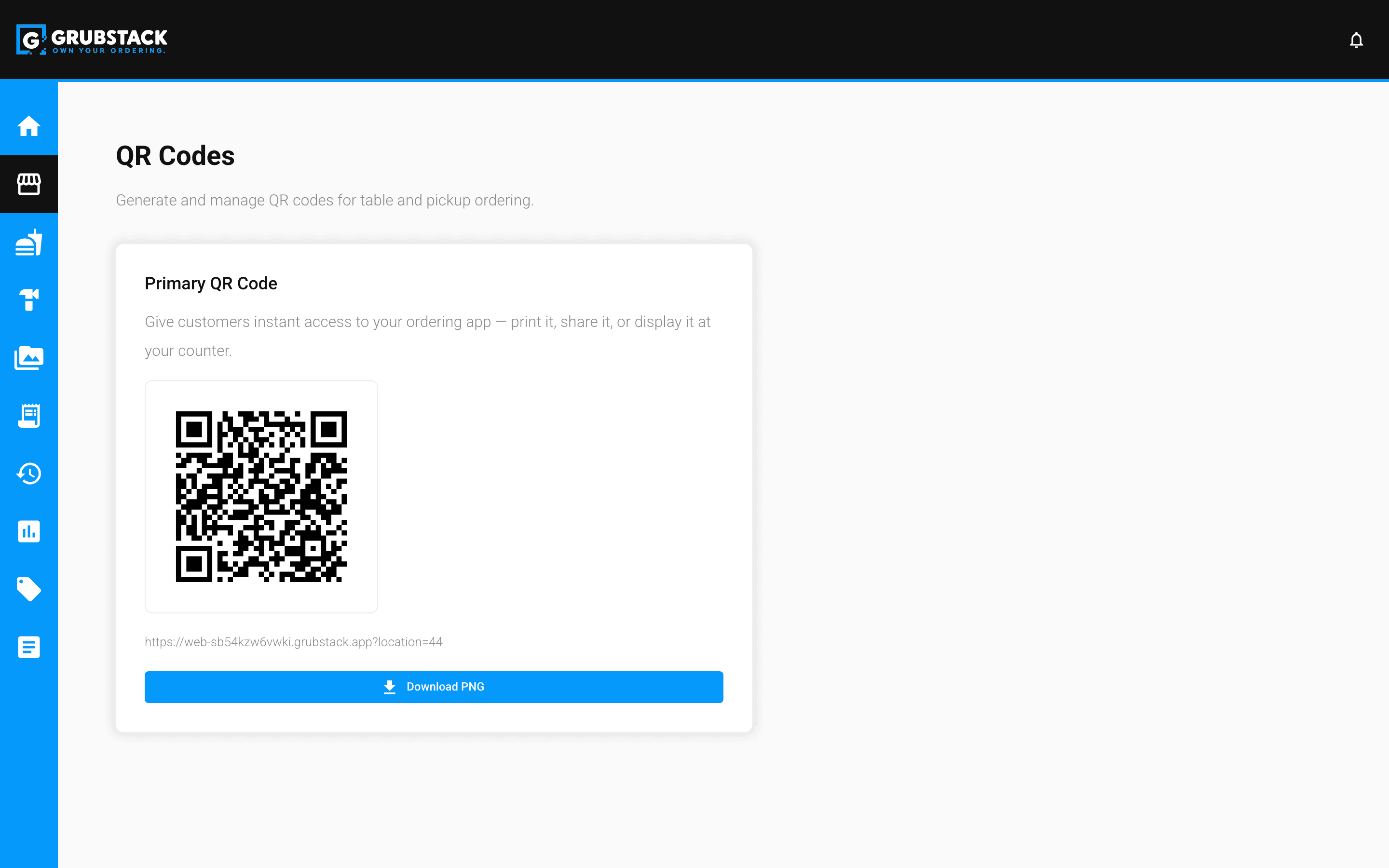
Your QR code, ready to print
Every location gets a QR code that opens your ordering site. Download it and put it on the counter, the truck or a flyer.
- Opens your menuCustomers scan it and order from their own phone.
- Download and printA PNG you can use anywhere.
Try it with your own menu.
Start your free trial and your ordering site and dashboard are ready in minutes.
- 14-day free trial
- No credit card
- No setup fee
- Cancel anytime