
Documentation
Item Details
Customizing and adding a single item to an order.
Item Details
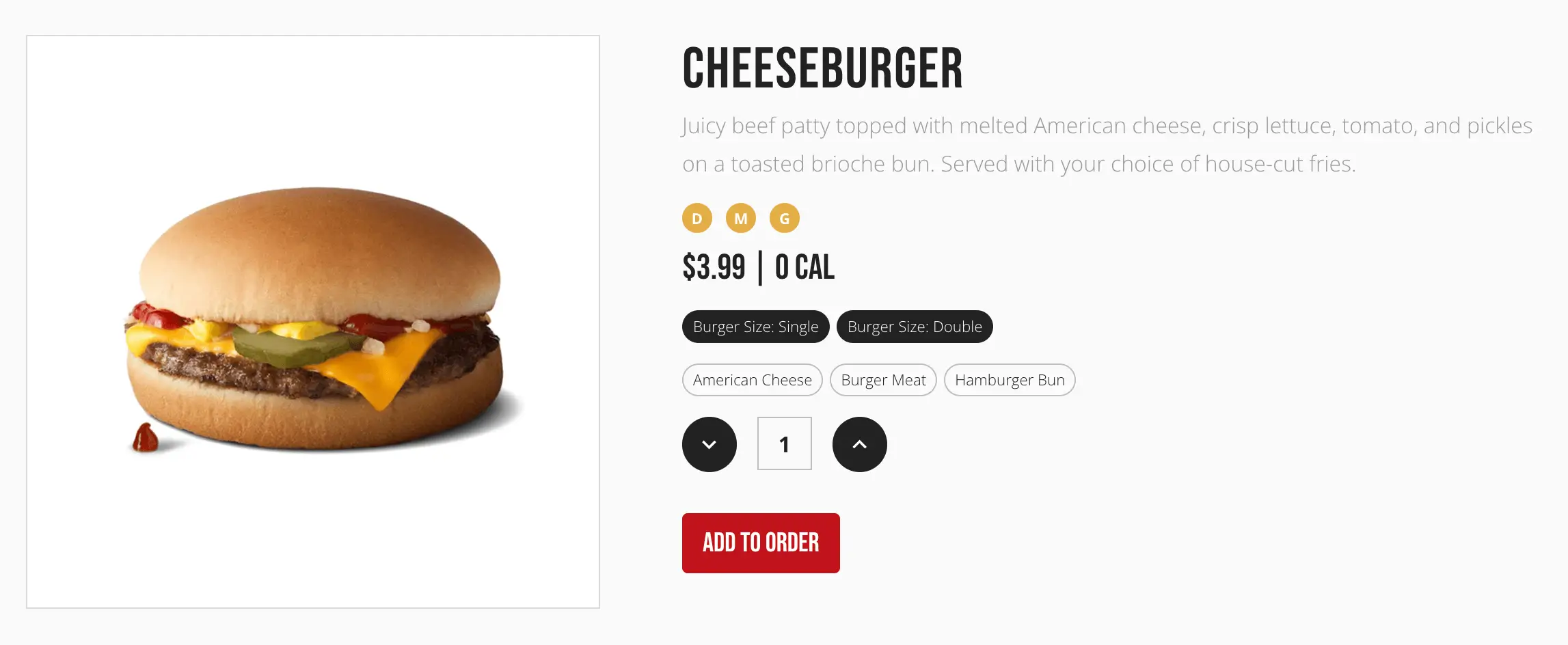
Clicking an item (rather than adding it directly from a card) opens its own page — a larger image, full description, price and calories, and any allergen, on-sale, or unavailable badges.
Customizing
If the item has varieties (for example, a size or flavor choice) or customizable ingredients, they're shown as chips below the price. Required varieties and extra/optional ingredients are chosen through the item customizer, opened by the Add to Order button; items with nothing to customize are added directly.
Quantity
A quantity selector lets the customer set how many to add before confirming; the displayed price updates to match.
Unavailable items
An item marked unavailable shows an Unavailable badge and a short message instead of the quantity selector and Add to Order button.
Not found
Visiting an item or menu that doesn't exist for this location shows a message explaining that, with a link back to the right page.