
Documentation
Checkout
Customer details, tipping, and payment.
Checkout
Proceed to Checkout first confirms the location is currently accepting Pick-Up orders (working hours permitting) before opening a two-step checkout dialog.
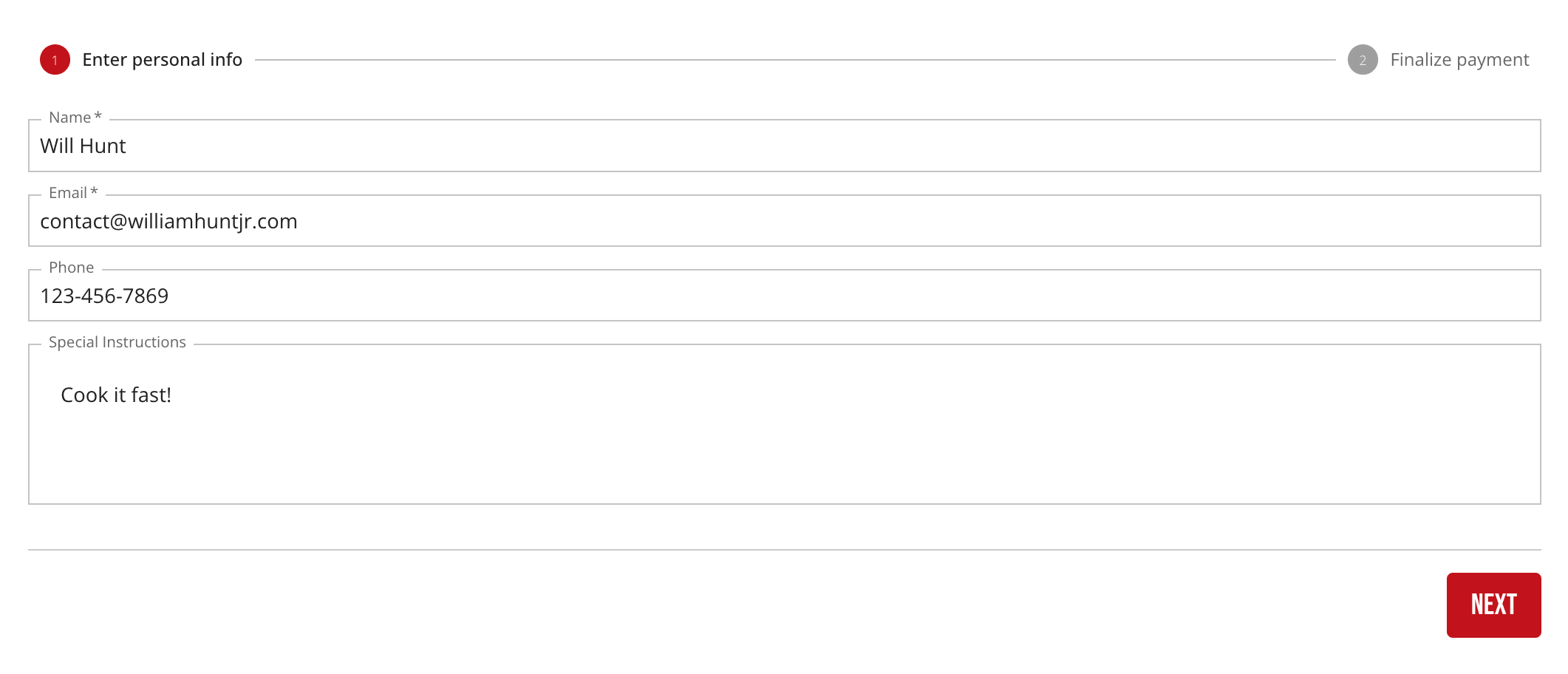
Step 1: Enter personal info
Name and email are required; phone and an order note are optional. If the order is below the location's minimum order amount, a warning shows the minimum and the current subtotal, and blocks moving on.
Step 2: Finalize payment
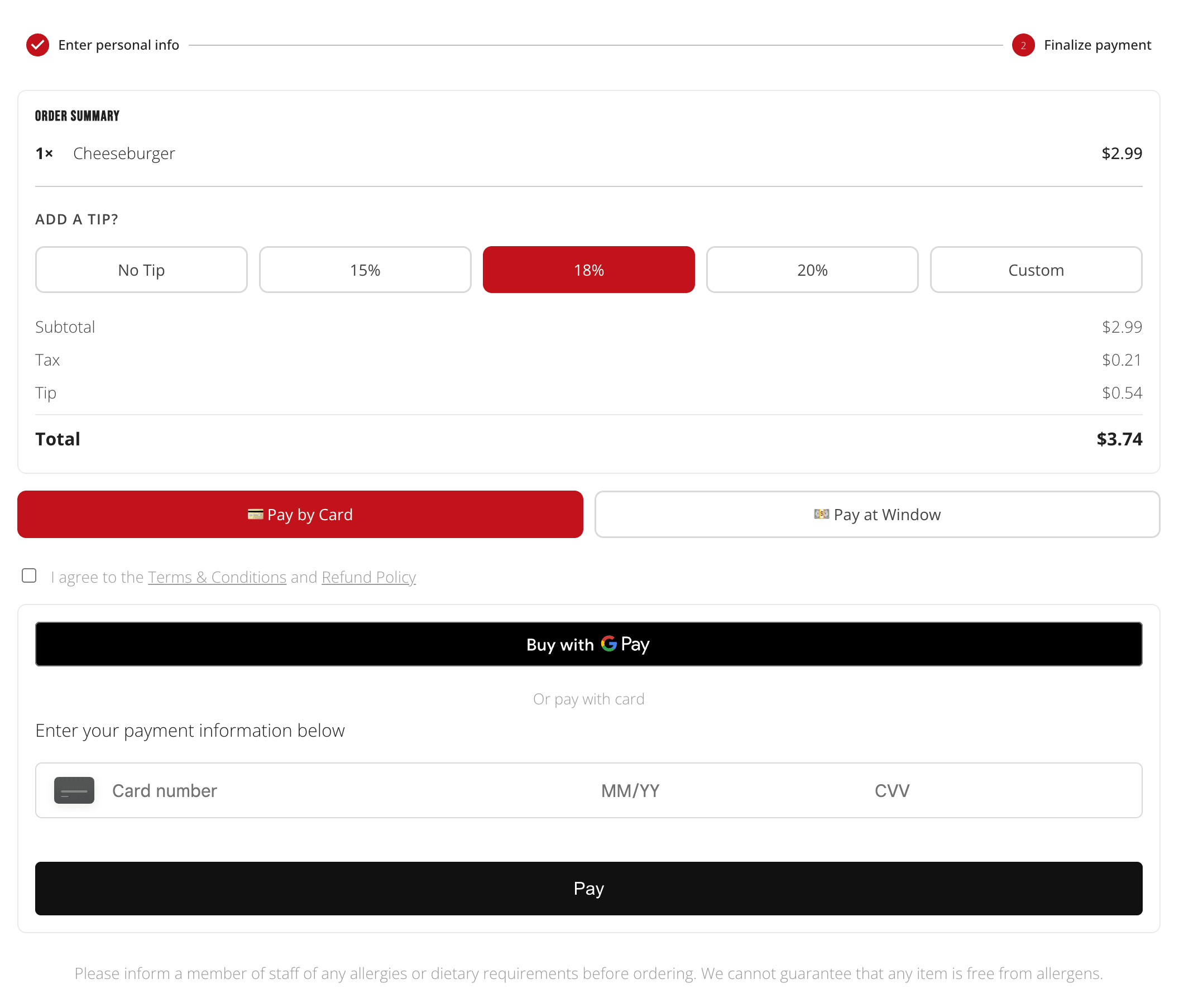
This step shows, in order:
- An estimated wait time, if the location has one configured
- An Order Summary — items, any applied promo code discount, tax, tip, and total
- A tip selector — no tip, 15% / 18% / 20% presets, or a custom amount, calculated off the discounted subtotal
- A Pay by Card / Pay at Window toggle, shown only when the location accepts cash payments
- A Terms & Conditions and Refund Policy checkbox, required before paying
- The payment form itself (card entry, or a confirmation step for a cash order)
- An allergen disclaimer
Cash orders
Choosing Pay at Window places the order as Awaiting Payment instead of taking payment online. The customer pays in person when they arrive; see Order Confirmation for what they see while waiting, and the Dashboard's Awaiting Payment page for how staff mark it paid.