
Documentation
Pairing a Display
Connect a new display to a location with a pairing code.
Pairing a Display
Each GrubStack Terminal display connects to exactly one location, using a short pairing code generated from your dashboard.
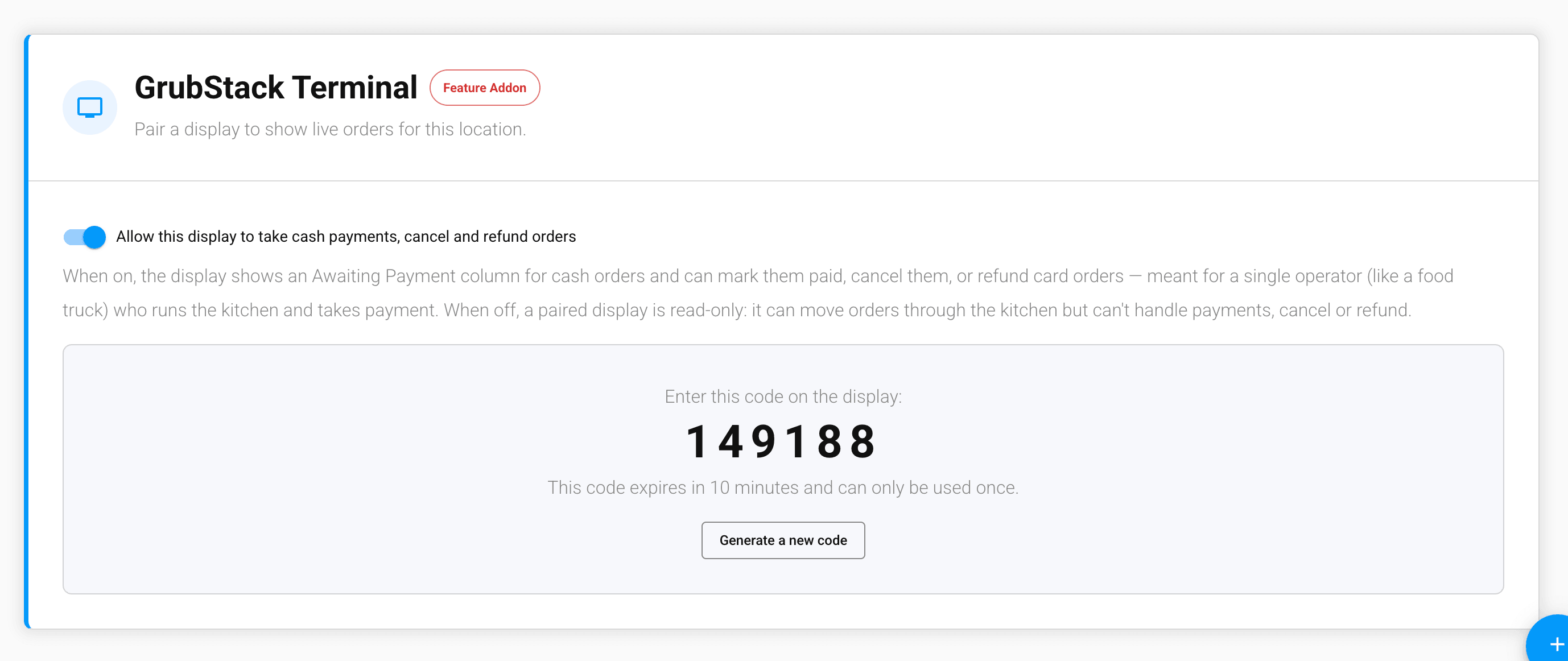
Generating a code
- In GrubStack Core, go to Restaurant → Locations and open the location you want to pair a display for.
- Open the GrubStack Terminal card and click Generate Pairing Code.
- A 6-digit code appears — enter it on the display within 10 minutes. Codes can only be used once, so generate a new one if it expires before you enter it.
Entering the code
On the display, open GrubStack Terminal in a browser and enter the code shown. Once paired, the display remembers its connection and goes straight to the Orders Board the next time it's opened — there's no need to re-enter the code unless the display's browser data is cleared.
Pairing more than one display
Repeat the steps above to pair additional displays to the same location — for example, one display in the kitchen and a second at an expo station. Each display gets its own connection, and all of them show the same live orders for that location.