
Documentation
Payment Setup
Connecting Square or Stripe to accept payments.
Connecting a Payment Processor
Before your storefront can accept orders, you need to connect a payment processor. GrubStack supports Square and Stripe — you can use one or the other, not both at the same time.
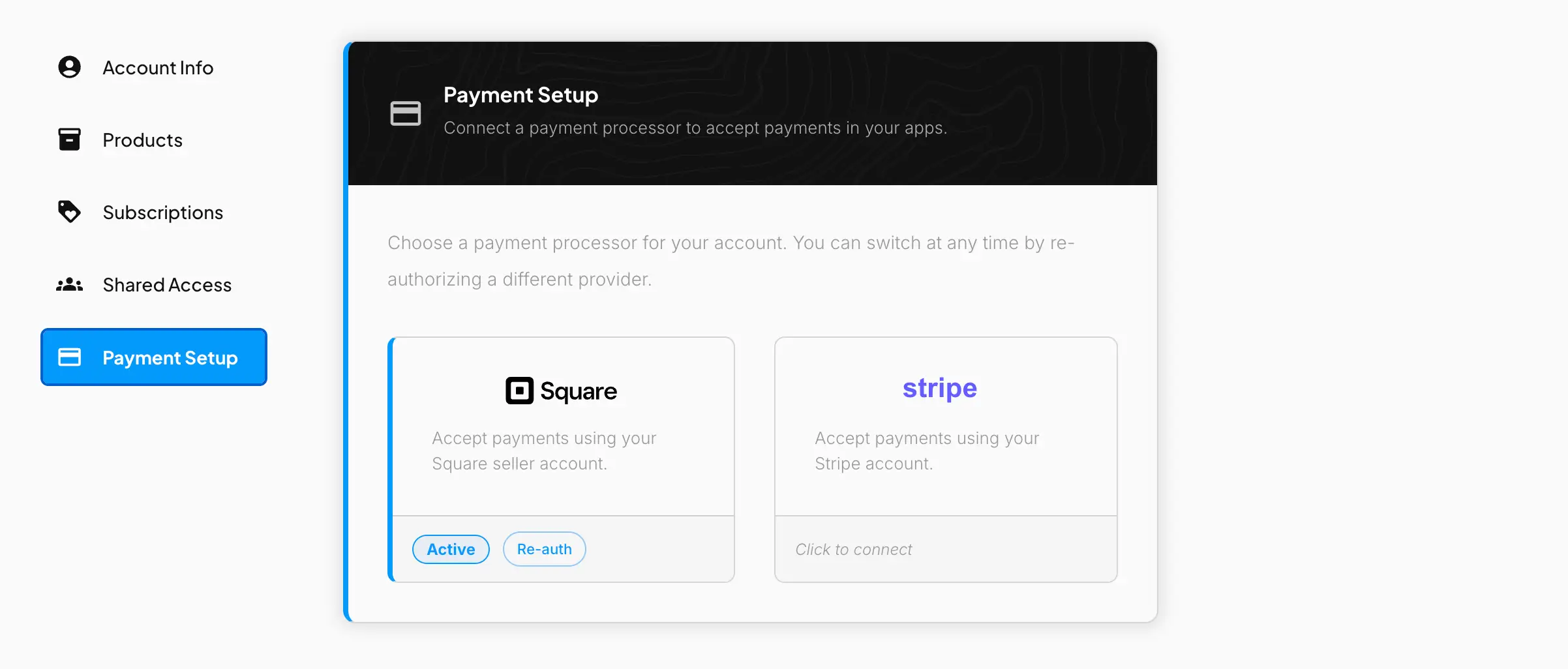
Connecting Square or Stripe
From your dashboard, go to Payment Setup and select a processor:
- Click the Square or Stripe card.
- You'll be redirected to that provider's own sign-in page to authorize GrubStack.
- Approve the connection, and you'll be redirected back to your dashboard automatically — no tokens or keys to copy and paste.
Once connected, the active processor is shown with an Active badge, and your storefront can immediately begin accepting card payments.
Switching processors
You can switch to the other processor at any time by connecting it — this replaces whichever processor was previously active.
Re-authorizing
If your connection to Square or Stripe ever needs to be refreshed — for example, after updating your account with the provider — use the Re-auth button on the active processor's card to repeat the authorization flow.
Disconnecting
Stripe can be disconnected directly from Payment Setup using the Disconnect button. To stop using Square, connect a different processor instead.
Without a connected processor, your storefront will not be able to accept card payments.